Everyday use
Settings
Open Settings from the tray or menu bar icon (right click › Settings…), or with F1 from the panel (⌘, on a Mac).
Open Settings from the tray or menu bar icon (right click › Settings…), or with F1 from the panel (⌘, on a Mac).
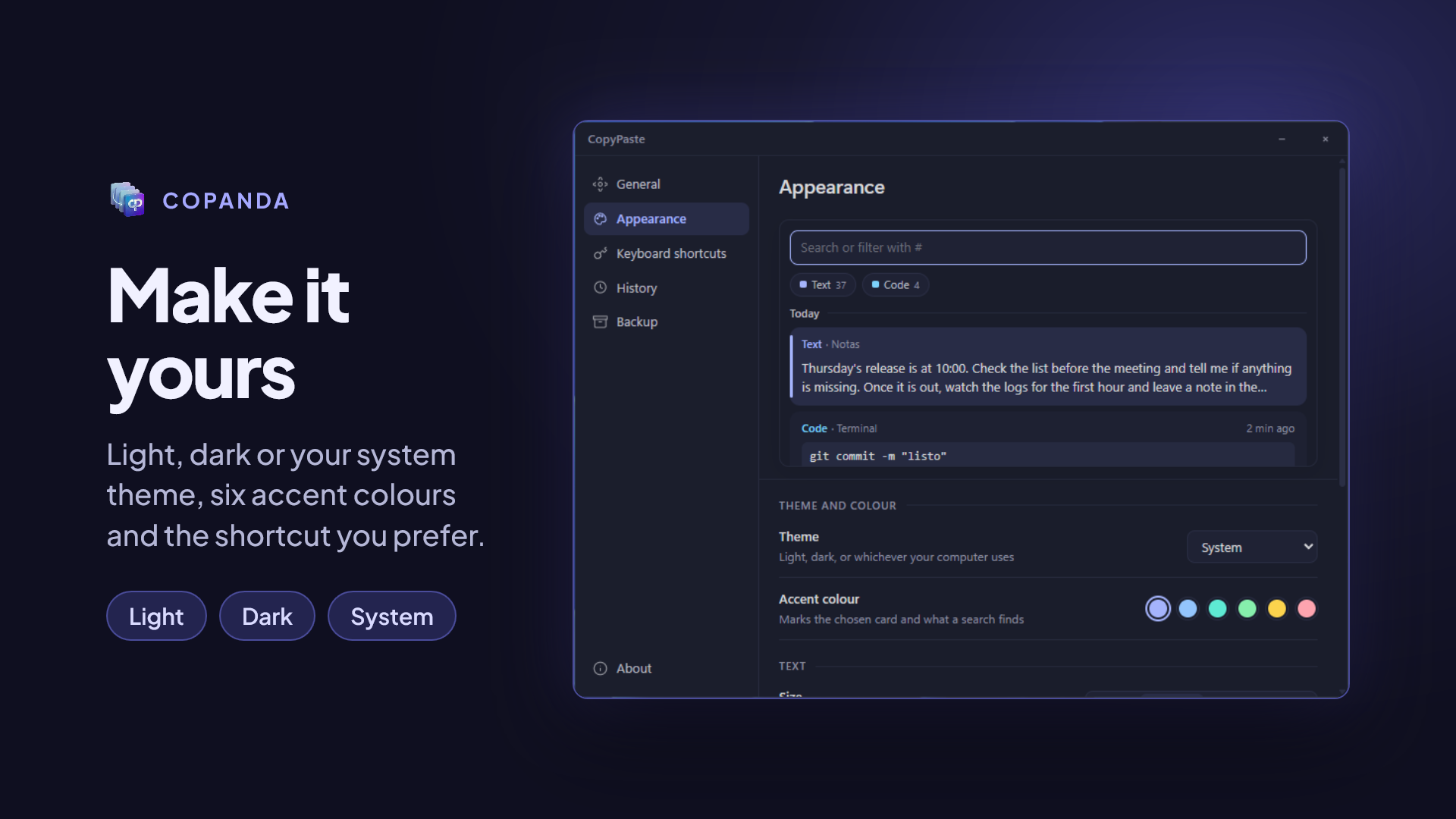
There are no Save or Cancel buttons: every change applies and is saved on the spot.
Settings has six sections.
General
Language
- Language: English or Spanish. By default, System: if your computer is set to Spanish (from any country), CoPanda speaks Spanish; in any other language, it speaks English.
Behaviour
- Start at login: CoPanda opens when you log in and waits in the tray. It needs no administrator rights.
- Hide when you click elsewhere: the panel goes away on its own as soon as you click another window.
- Permission to paste (Mac only): shows whether macOS gave CoPanda the Accessibility permission. Without it, what you pick stays on the clipboard for you to paste. The Grant button takes you to System Settings. More in First steps.
Appearance
Theme and colour
- Theme: System, Light or Dark.
- Accent colour: marks the chosen card and what a search finds. Indigo, Blue, Teal, Green, Amber or Rose.
Text
- Size: makes the whole panel larger or smaller, text included. Small, Normal, Large or Larger.
- Font: the one for the text on the cards.
- Code font: the one for code and JSON snippets.
Cards
- Card height: how many lines a closed card shows. Compact, Normal or Roomy. Code shows up to two.
The preview changes as you adjust. Reset the appearance puts everything back the way it came.
Keyboard shortcuts
- Panel shortcut: the one that opens the panel from anywhere. By default
Ctrl+Alt+V(Windows) or⌃⌥V(Mac). Change, press the new combination and you are done; Leave it as it is cancels. - What the panel answers to: the list of keys that work while the panel is open. The full list is in Keyboard shortcuts.
If another program already uses your combination, a notice appears here with a list of free combinations.
History
What is kept
- Keep: 7 days, 30 days (default), 90 days or Forever. Older items are deleted automatically. Pinned items never expire.
- History size: No limit (default), 256 MB, 512 MB or 1 GB. When the limit is reached the oldest goes, whatever it is; pinned items stay. Below it you see how much it takes up today.
Your data
- Data folder: where your history lives. Open folder opens it.
- Empty the history: deletes everything you copied and keeps what you pinned. It asks for confirmation and cannot be undone.
Backup
Export and import
- Export…: writes a
.cpbackupfile with your whole history: text, images and what you pinned. - Choose a file…: imports a
.cpbackupand adds what it holds to what you already have. Nothing is lost or duplicated.
The previous version
- Bring the history over: imports what you kept in CopyPaste 2.
- Delete CopyPaste 2’s data: for when you no longer want it.
All of this is explained in Backup and migration.
About
- The version you have and, outside the Microsoft Store, whether a newer one exists: Check now and Update.
- If something goes wrong: Save a report… and Open the log. See Troubleshooting.
- Links to the repository, the privacy policy, the third-party notices and the licence texts.
- Support: give it a star, rate it on the Store, sponsor the project or buy me a coffee.
- Show the welcome again.
Where settings are stored
In the config.toml file inside the data folder:
- Windows:
%LOCALAPPDATA%\CopyPaste\config.toml - macOS:
~/Library/Application Support/CopyPaste/config.toml
Settings are not included in a .cpbackup.